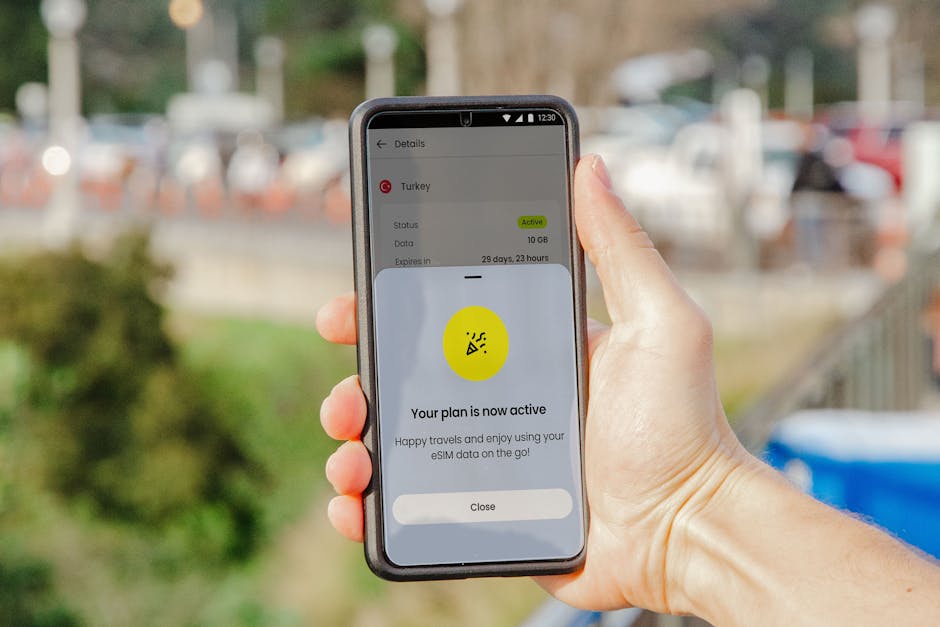
If you’re wondering how to use an eSIM in Egypt for maps, translation, and ride-hailing, I’ve got you. In this guide, I’ll walk you through setup, downloading offline maps and translation packs, picking the right regional coverage, and what to do when your signal is hit-or-miss.
1) Set your eSIM up before you actually need it
What to check on your phone (takes 2 minutes)
Before you buy/activate anything, make sure your phone can handle eSIM:
- Unlocked phone: most eSIM plans won’t work on carrier-locked devices.
- eSIM support: in Settings → Cellular/Mobile Data you should see Add eSIM or Mobile plans.
- Data roaming isn’t the main switch with eSIM, but you do want cellular features enabled.
- Location services on (for maps accuracy and ride pickups).
If any of this feels like a scavenger hunt, do a quick test at home with a spare eSIM you already use (or just confirm the menus exist).
Activate it the smart way (plane mode + Wi‑Fi)
The easiest pattern is:
- Before boarding or before you land: download the eSIM app/profile steps from your provider.
- On arrival (or in the airport): connect to Wi‑Fi.
- Turn on Airplane Mode, then enable Wi‑Fi (and/or cellular setup as directed).
- Follow the prompts to add the cellular plan (usually a QR code or an in-app activation).
One honest tip: don’t wait until you’re standing at a pickup point to activate. Do the setup while you’re still calm.
My “don’t get stranded” test (do this once)
Once your eSIM is installed:
- Open Maps and make sure you see your location.
- Try loading one normal web page (just to confirm data works).
- Open your translation app (Google Translate / Apple Translate / similar) and confirm you can access settings.
If data doesn’t load immediately, don’t panic—sometimes it takes a few minutes for provisioning to fully kick in.
If you’re shopping for an eSIM for Egypt, I personally tend to use Airalo for this kind of “land, switch on, and go” setup.
2) Maps + translation that keep working even when signal drops
Download offline maps for the areas you’ll actually use
Egypt is very doable with offline maps, as long as you download the right areas ahead of time.
For offline maps (common approach in Google Maps and similar apps):
- Search the area you need (city center + neighborhoods you’ll move around).
- Choose Download offline map.
- Keep an eye on size limits (if it warns you, zoom in tighter and download fewer zones).
What I recommend for typical trips:
- Cairo: download the area around where you’ll stay + the routes you’ll likely repeat.
- Alexandria / Luxor / Aswan: download the main visit zones rather than the whole region.
- Long drives: consider downloading smaller chunks along your route so you’re not stuck if you hit a dead zone.
Trade-off note: offline maps are great for navigation basics, but they won’t magically fix everything (live traffic, some dynamic layers, and real-time updates may be limited).
Set up offline translation (so you’re not dependent on data)
For translation, the big win is downloading language packs before you leave Wi‑Fi.
In your translation app, look for:
- Offline language / Download languages
- Download Arabic and English (or whatever direction you need)
- Turn on settings for offline use if they’re separate
Then practice one simple workflow:
- Type a common phrase and see if it translates offline.
- If you use camera translation, note that some camera features need data even if text translation can be offline.
Keep directions reliable when the network is flaky
Even with offline maps, a patchy network can still mess with app refresh and location accuracy.
To reduce stress:
- Before you leave your accommodation, check that GPS/location is working.
- Save key places (hotel, landmarks, pickup points) as Favorites.
- When you start moving, keep your phone charged and set brightness so you can see the screen.
I also like to keep a “plan B” mental map:
- If the blue dot stalls, use nearby landmarks and follow your offline route until the location tracking catches up.
3) Choose eSIM coverage by region (Egypt is not one-size-fits-all)
Start with your route, not your wish list
When you pick a data plan, don’t base it only on total days. Base it on where you’ll be when you need data most:
- City centers (maps, ride-hailing)
- Transfers between cities (less predictable signal)
- Coastal areas and valleys (signal can vary a lot block to block)
If your eSIM offering is Egypt-wide, great—still download offline content for the places that matter.
If it’s region-focused (or you’re unsure whether roaming details cover your exact route), align your coverage to the areas below.
Coverage to think about (based on how most trips move)
Pick what matches your itinerary:
- Cairo & Giza
- Alexandria
- Luxor & Aswan
- Hurghada & El Gouna
- Sharm El‑Sheikh & Dahab
- Sinai + the Suez area (including Suez/Port Said)
Even if your plan is broad, this list helps you decide where you must be strongest on offline maps and offline translation.
Watch for the “coverage vs speed” difference
A plan can be “available” in a place but still be slow or inconsistent.
When you’re deciding, look for signals like:
- Data allowance (higher isn’t always better, but too little can hurt when maps + ride apps keep refreshing)
- How the plan describes coverage vs service quality
- Whether you can top up (or switch plans) without reinstalling everything
And once you’re there:
- Do one quick check: open maps for a location you know, then open ride-hailing app and confirm it can load.
4) Ride-hailing in Egypt: make your pickup work with limited data
Permissions that matter (you’ll feel this immediately)
Before you request a ride, confirm these permissions:
- Location: “While using the app” (or equivalent)
- Background location if the app asks for it
- Allow precise location if your phone offers it
If permissions are off, your pickup pin can end up a few streets away—which is exactly when you don’t want to be negotiating in traffic.
Use your best pickup strategy (pin + landmark)
When signal is patchy, ride-hailing gets harder. Your job is to reduce ambiguity.
How I do it:
- Drop the pickup pin at the closest accurate point.
- Add a clear reference in your pickup notes if the app supports it (e.g., “near the hotel entrance” instead of just the street).
- If your app supports it, share your pickup location once the driver is assigned.
If the app won’t load, don’t keep retrying blindly
Here’s a common pattern that wastes time:
- Request ride → app spins → you refresh repeatedly → data rate tanks → you wait longer.
Instead, try this order:
- Switch to Wi‑Fi if your hotel/restaurant has it and you can access it.
- Toggle Airplane Mode off/on once (don’t spam it).
- Wait 30–60 seconds, then try opening the app again.
Also, keep expectations realistic:
- Sometimes you’ll need to move 1–2 blocks to get a better signal and a more accurate GPS fix.
5) When signal is patchy: troubleshooting that usually fixes it
Quick fixes that are actually worth trying
When the network is inconsistent, these steps often get things moving:
- Toggle Airplane Mode (turn on for 10–20 seconds, then back off)
- Restart your phone if things keep failing after a reset
- Make sure you’re not stuck on a weird setting like data disabled
- If you have options to choose networks, try switching to a different one (your phone may do this automatically)
Reduce data stress (so you don’t run out at the wrong moment)
Patchy coverage can create a hidden data drain: apps keep retrying.
To keep things under control:
- Turn on Data Saver/Low Data Mode if you’re using it
- Disable background updates for heavy apps (social apps, cloud photo sync)
- Download what you can early: offline maps, offline translation packs, and any documents you’ll need
Keep a “no-data” emergency plan
You don’t need to be paranoid, but you do need a simple plan.
Have these ready before leaving your accommodation:
- An offline map route open (even if you can’t get live traffic)
- A couple of saved places (hotel entrance, a café you trust, a landmark)
- Offline translation phrases saved in your favorites
- A way to show your pickup location clearly (screenshot of the map pin is surprisingly helpful)
If your data disappears mid-trip:
- Keep navigating with offline maps.
- Communicate locally using offline translation.
- For ride-hailing, wait in a spot with a better line of sight to networks (often near main roads or open areas), then try again.
6) Your Egypt eSIM checklist for maps, translation, and ride-hailing
Before you head out each day
Do a quick “state of the phone” check:
- Offline maps for today’s areas downloaded
- Offline translation language packs installed
- Location services enabled
- Phone charged enough for a few hours of navigation
Before you request a ride
Make your pickup smoother:
- Location permissions confirmed
- Pickup pin dropped correctly
- Pickup notes set to reference a landmark/hotel entrance
What to do if it still goes wrong
If the ride app fails repeatedly:
- Switch to Wi‑Fi if possible
- Move a short distance and retry
- Use offline maps to get yourself to a better signal area
- Try again after 5–10 minutes (instead of hammering refresh over and over)
Final thoughts
Using an eSIM in Egypt for maps, translation, and ride-hailing is totally doable—you just need to front-load the setup and lean on offline downloads. The big win isn’t “perfect signal everywhere,” it’s having your directions, your translations, and a reliable pickup plan ready before you step into the chaos.
If you tell me which cities you’re visiting (and roughly when), I can help you decide what to download offline and which coverage areas to prioritize.